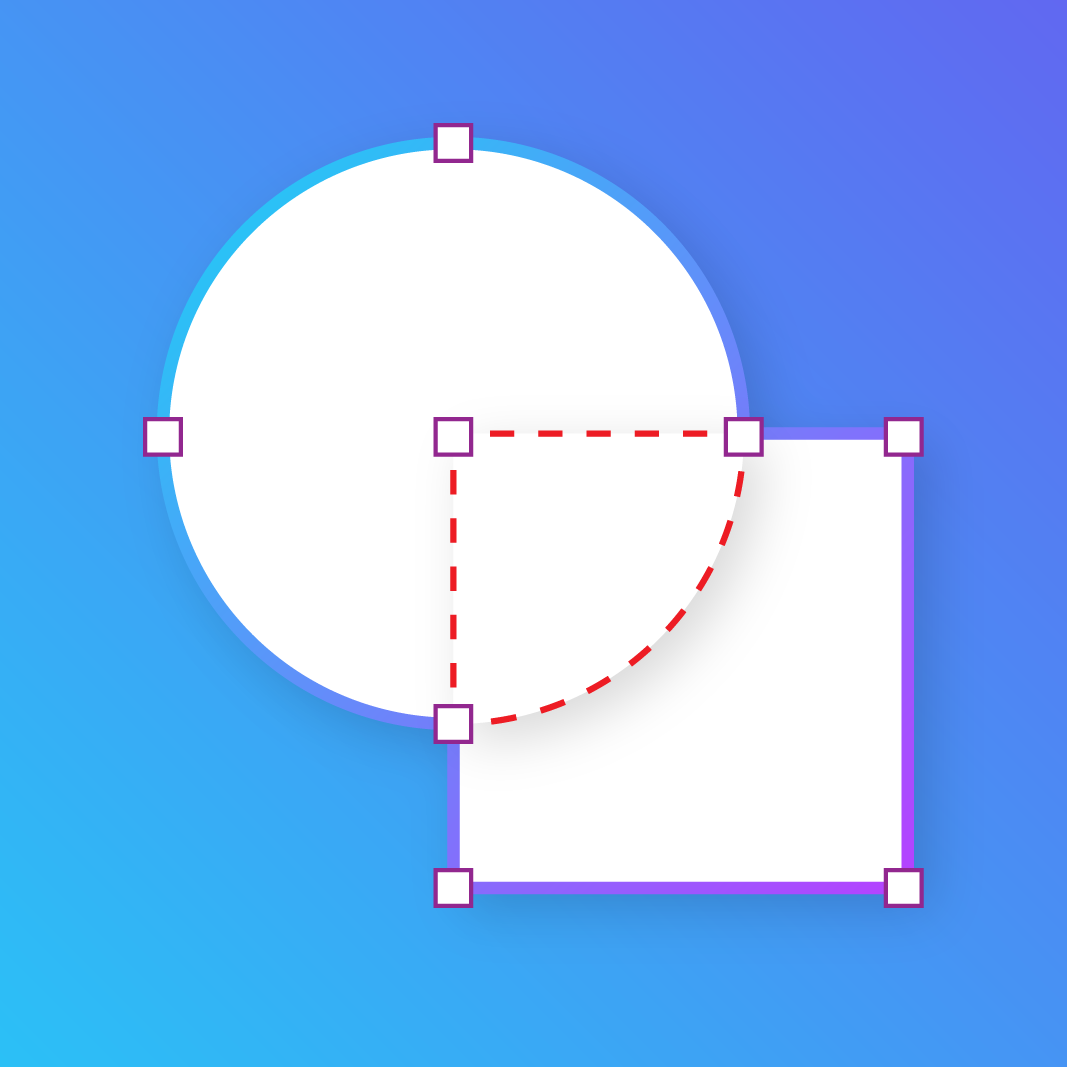
Keep the part you want. Cut out the rest.
Give your images a more custom look. Select the region you want to cut out and use it to create distinctive shapes and more precise designs.

What you can do
Purpose-built functionality crafted for daily workflows.
Select a specific region
Focus on the part of an image you want to use.
Cut out image areas
Remove selected regions to create a more customised result.
Refine your design
Use cutouts to add flexibility and detail to your Canva projects.
How it works
01 · Choose an image
Select the image you want to edit.
02 · Select the area
Identify the region you want to cut out.
03 · Apply the cutout
Create the result and continue refining your design in Canva.
Sometimes a full image isn’t what your design needs. You may only want a particular region, or you may want to give an image a more distinctive shape.
Shape Cutout helps you select and cut out specific areas of an image, giving you another way to shape the visuals in your Canva projects.
Frequently asked questions
What does Shape Cutout do?
What can I use it for?
Can I use the designs and outputs for commercial projects?
More from Craft Mage
Explore other tools we've made to help you get things done.